Site Owners
Pilots
Download our app below to start discovering new landing sites




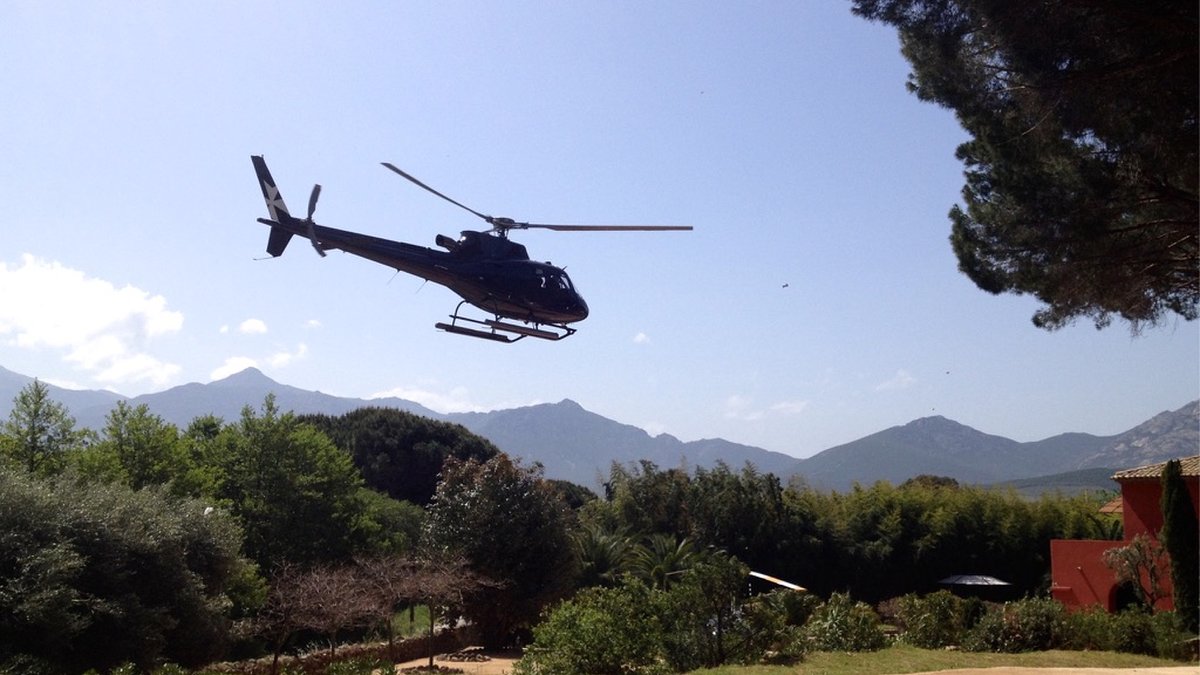
Running a fly‑in shouldn’t mean juggling spreadsheets, inbox threads, and last‑minute “can I still come?” messages. The Helipaddy Fly‑In tool gives organisers a public booking page for each event, with optional slot‑based arrival scheduling, automatic confirmation emails, and a lightweight organiser panel to manage everything in one place. You can set landing using either a Helipaddy Site ID or direct coordinates, optionally require pilot insurance certificate uploads, publish a mandatory special instructions PDF, ask simple custom booking questions, collect a landing-fees receipt, and set an optional minimum-booking fail-safe. Create your own fly-in now using the form below.
“Your system was fantastic and fundamentally changed the whole PPR process. Can’t wait to implement it again next year and push for more helis.”
Thunder Aviation
If you don’t wish to use the booking feature, you have the option to simply link to your own website. This means you can still list your fly-in on our Fly-Ins page at https://helipaddy.com/fly-ins/.
Play with our sample fly-in at https://helipaddy.com/hp-flyin/example: try booking a slot or login as Organiser with password Organiser.
Organisers own the entire process, not Helipaddy. We just do the heavy lifting. Create your own fly-in now using the form below.
Start from the form below or use the organiser panel on your existing fly-in page. It takes a few minutes to create a draft fly-in, and nothing is published until you check the Published option. If you just want to list your event without using Helipaddy bookings, choose the external booking option and link to your own website.
The main settings to review are arrival slots or open ETA, total aircraft capacity, approval required, insurance certificate upload, special instructions PDF, event password, landing-fees payment link, custom booking questions, and the optional minimum-booking fail-safe. If you set a minimum booking number, you can also choose how many days before the event Helipaddy should check it.
If you have entered a payment link, leave the minimum bookings setting at 0 unless you are comfortable handling refunds yourself. Helipaddy cannot manage refunds for external payments.
For more detail on choosing settings for slots, surveys, records, and risk controls, see Fly-in risk controls: how slots, surveys and records can help.
1) A pilot opens the Helipaddy fly‑in page (or finds it via your own “Upcoming Fly‑Ins” web page).
2) If you enabled an event password, they’ll be prompted to enter it once only.
3) If you uploaded a special event instructions PDF, they must download it before the booking form can be submitted.
4) They read your instructions, then pick an arrival slot, or enter an ETA (if slots are disabled).
5) They submit: name, email, aircraft registration/type, and any notes, plus insurance PDF, payment receipt/reference, or custom question answers when required by the organiser.
6) They see an on‑page request received message.
7) If approval is enabled, the booking stays pending until the organiser approves or rejects it; pilots receive the final email after that decision.
8) If approval is not enabled, they receive a confirmation email immediately, containing everything they need including a calendar attachment and, when configured, the special instructions PDF.
9) If plans change, they can cancel from the email link, confirm cancellation, and rebook if spaces remain.
10) If the organiser has enabled the minimum-booking fail-safe and the fly-in is cancelled, booked pilots receive a generic cancellation email.
Important: a slot booking helps manage congestion but, unless the landing site says otherwise, it is not landing permission—pilots should still use Helipaddy Request Landing button to request landing as normal.


2 thoughts on “Helipaddy Fly-In Tool”