Site Owners
Pilots
Download our app below to start discovering new landing sites




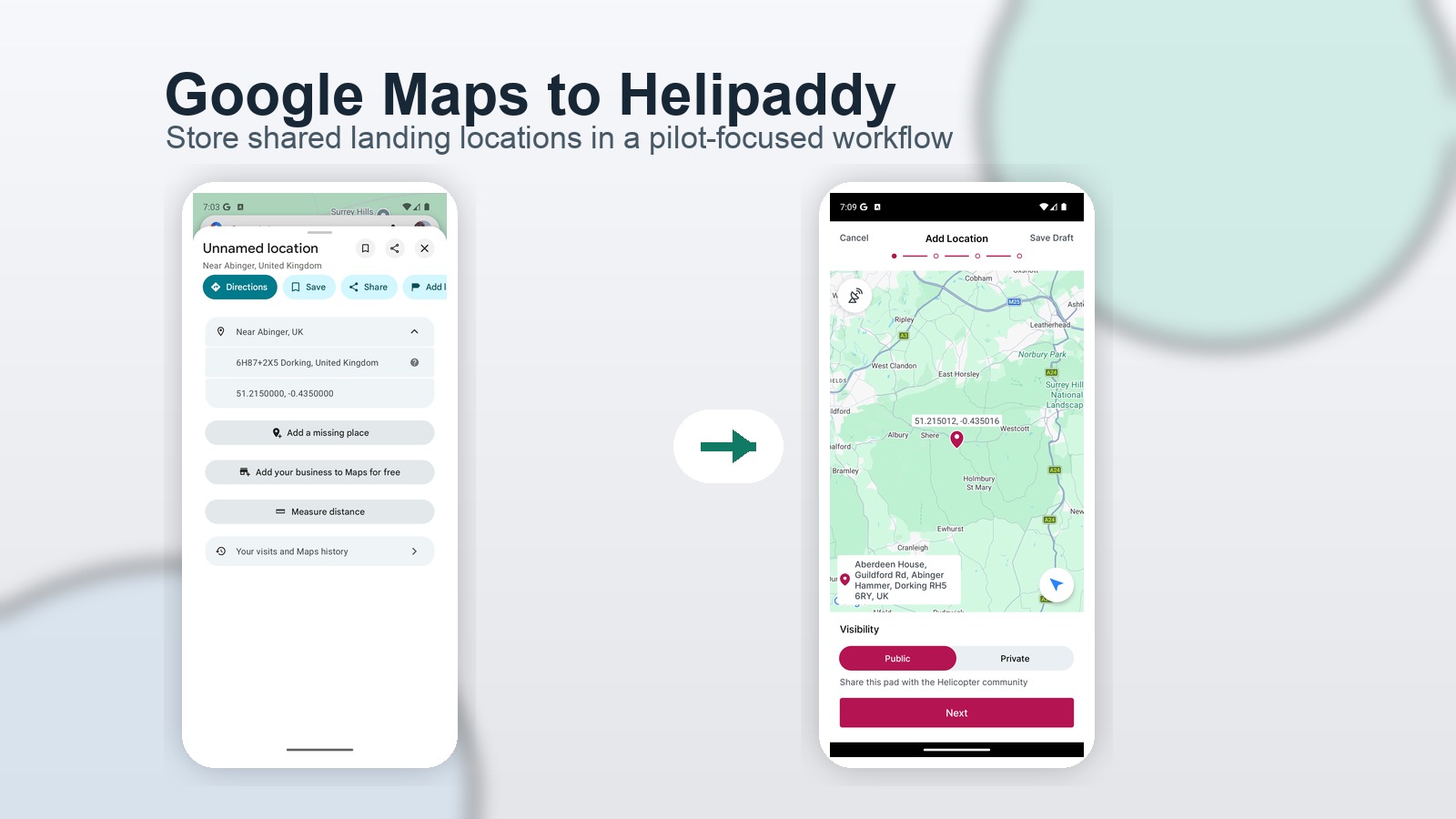
Pilots often get sent locations in whatever format is quickest.
A hotel sends a Google Maps pin. A friend drops a marker. Someone texts a location for lunch, an event, or a pickup point.
That works well enough for sharing a place once. It is not a great long-term place to keep aviation-useful landing locations.
If a place is worth keeping, Helipaddy is usually the better home for it.
Google Maps is useful for sending locations, but it quickly becomes messy if you start using it as your personal store of landing places.
Before long, it is full of:
Helipaddy is different. It is a purpose-built place to store locations that matter to pilots.
Once a location is in Helipaddy, it becomes easier to:
That makes Helipaddy a much better long-term workflow than leaving everything buried in Google Maps.
+ button to add it.That is it.
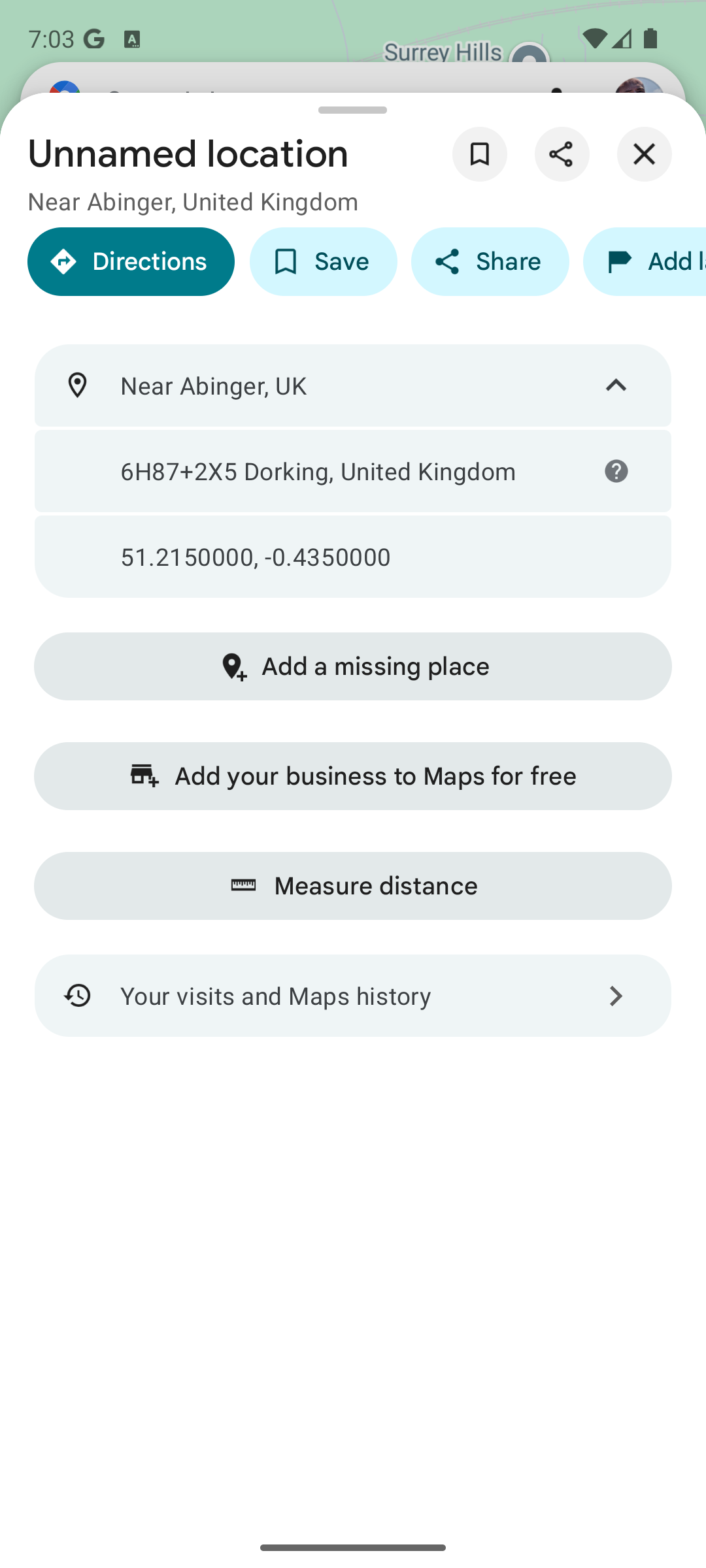
In Google Maps, start with the location you want to keep.
For a dropped pin or unnamed location, expand the address/details row and Google Maps will show a Plus Code.
In the example below, the location shows the Plus Code 6H87+2X5 Dorking, United Kingdom.
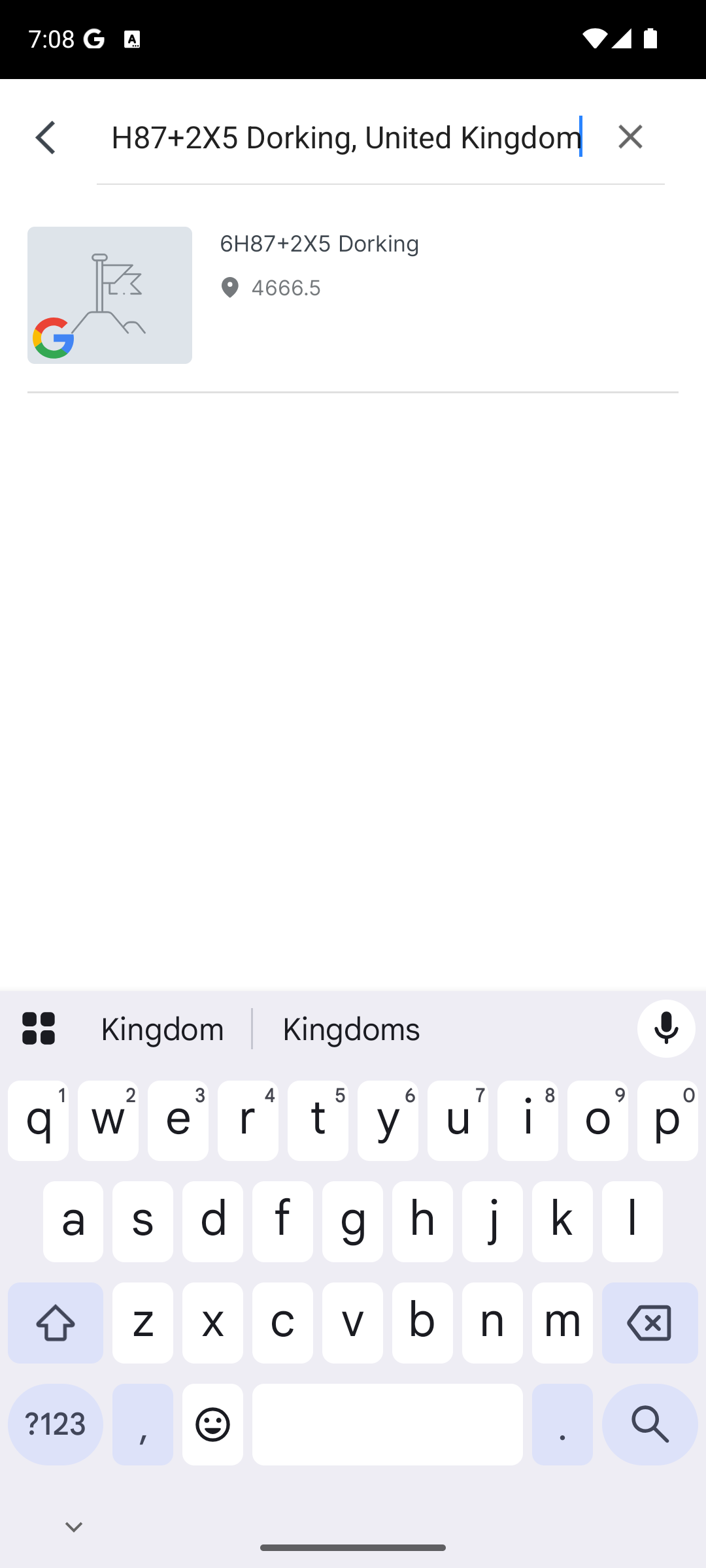
Open Helipaddy and tap the search bar.
Paste the Plus Code exactly as copied from Google Maps. In this case, that means including the place context, not just the short code on its own.
Helipaddy search will resolve it as a place result.
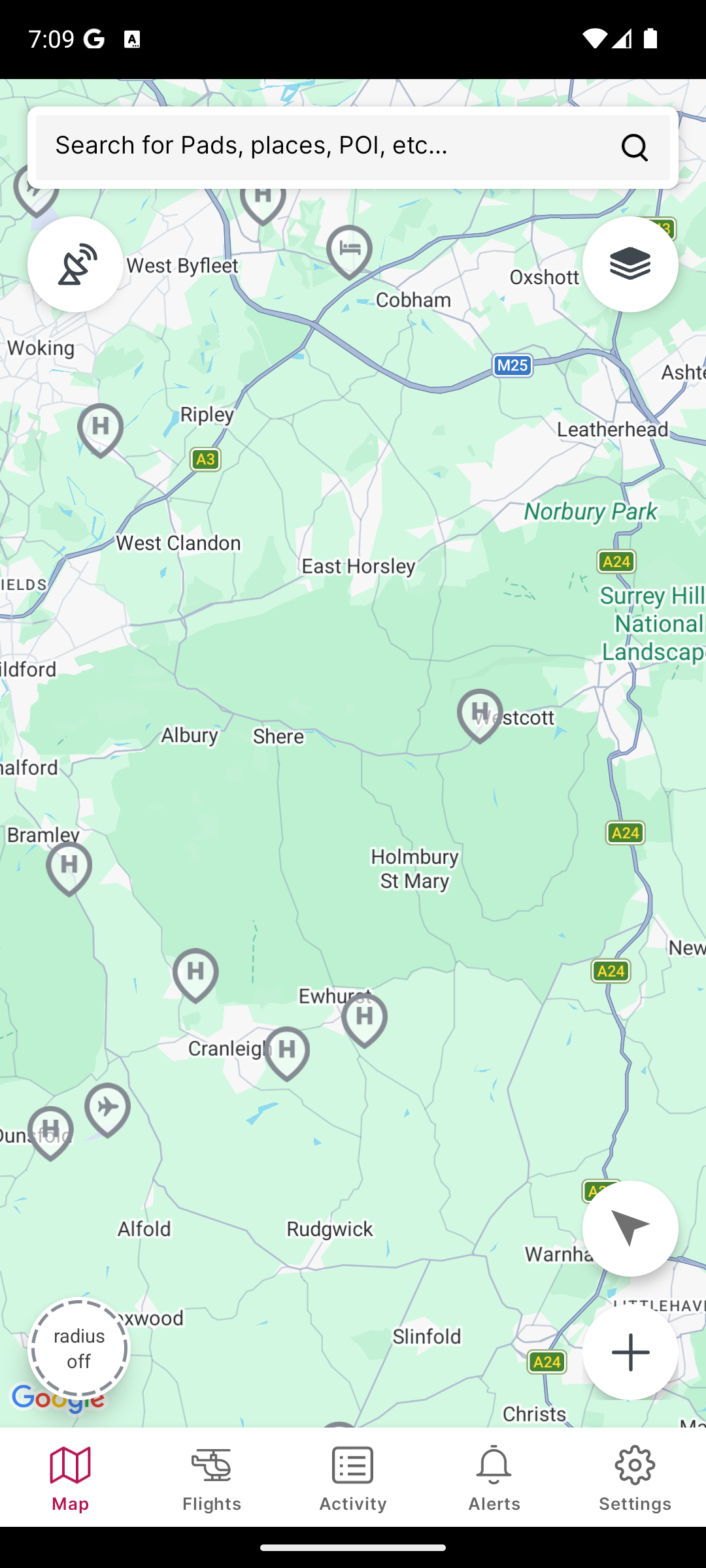
Tap the search result and Helipaddy will centre the map on the matching location.
At this point, you have moved from a generic Google Maps marker into the Helipaddy workflow.
You are now looking at the area inside the app, with the normal Helipaddy map controls available and the + button ready for adding the location.
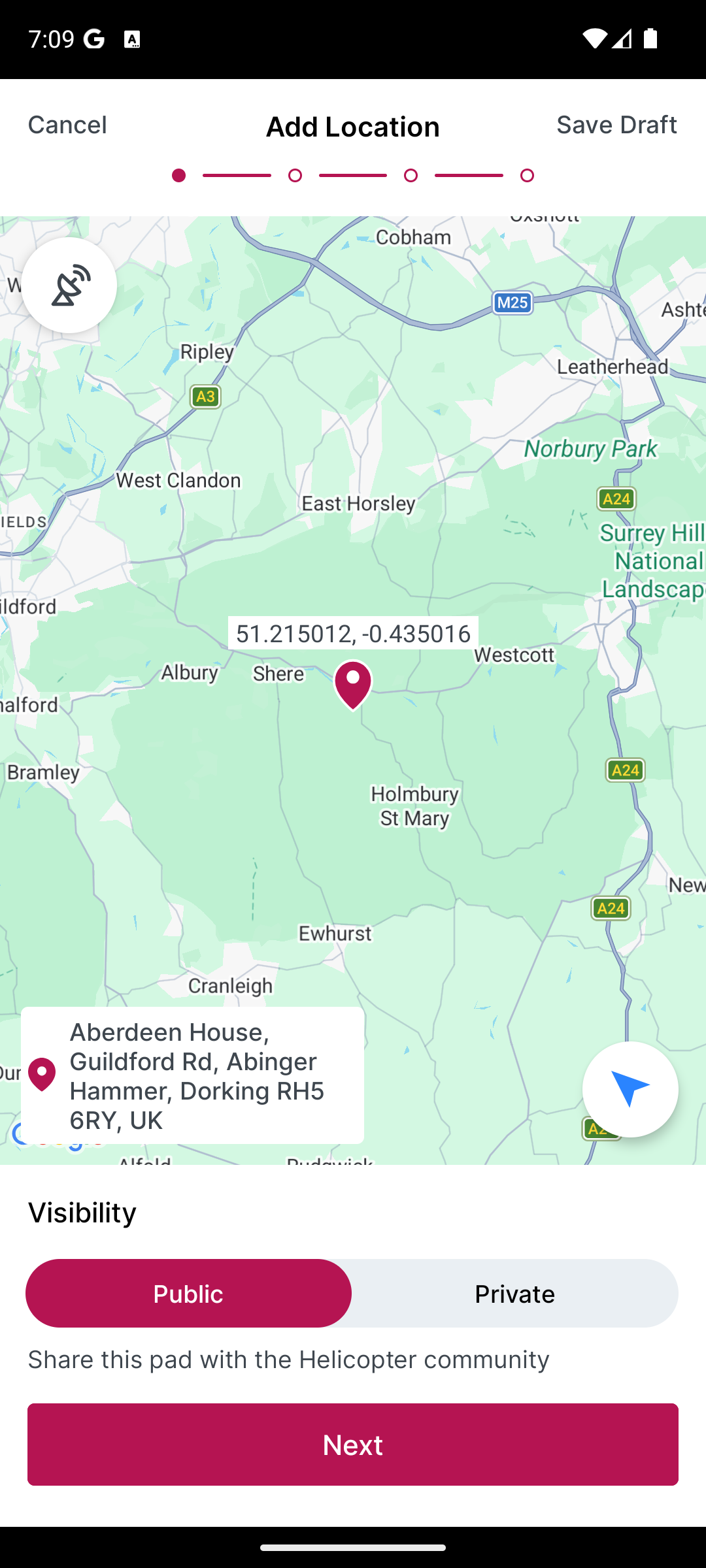
Tap the + button and Helipaddy opens the add-location flow with the coordinates and address already filled.
That is the key handoff point: Google Maps helped you share the place. Helipaddy helps you keep it.
This matters because plenty of good helicopter destinations first arrive as shared map locations rather than ready-made aviation waypoints.
A few common examples:
If you leave those in Google Maps, they tend to disappear into the general noise of everyday map use.
If you move them into Helipaddy, they become part of a pilot-focused system instead:
That is the real value.
Google Maps is excellent for sharing a location quickly.
Helipaddy is the better place to keep that location if it is somewhere you may actually want to fly to again, share with another pilot, favourite, or export into your navigation workflow later.
So next time someone sends you a location in Google Maps, do not just leave it there.
Copy the Plus Code, paste it into Helipaddy, and add it properly.
If you already use favourites, you can then find it again in /me. If you are new to the platform, you can also browse more pilot app features or register as a pilot.


